Heights Platform Desktop App for Mac and Windows
Using the Heights Platform Desktop App
Heights Platform is available as a desktop app for both macOS and Windows. The Heights Platform desktop app provides full functionality to access creator programs built on Heights in a native desktop app.
Download and install Heights Platform desktop application
Download the latest version here: https://www.heightsplatform.com/download
Signing in
- Open the app and enter your account subdomain or custom domain.
- Sign in with your normal Heights login credentials.
- The app will remember the account domain for faster sign-in next time.
Switching accounts on the Heights Desktop App
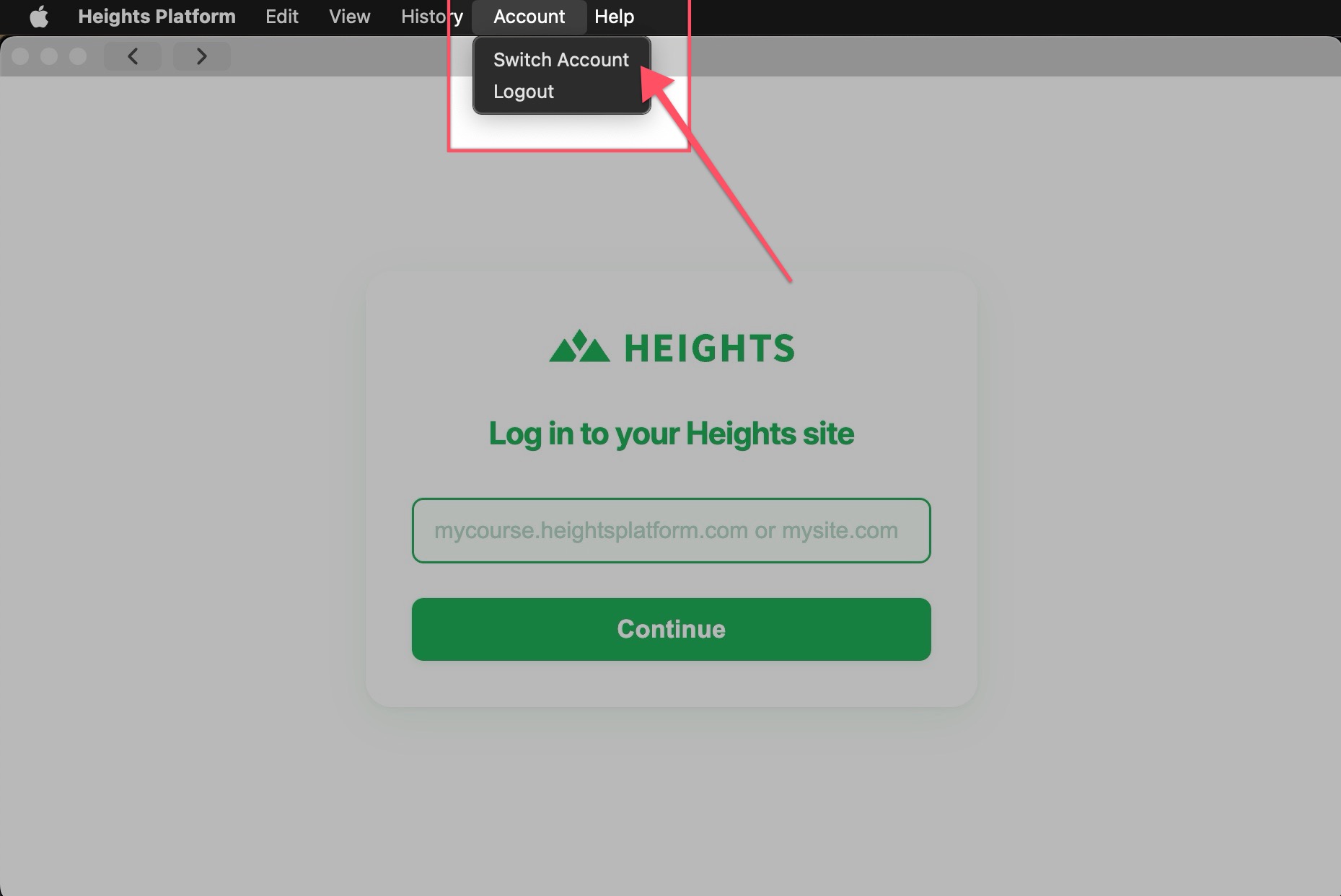
If you have multiple Heights accounts (or need to move between account domains), use Account → Switch Account from the desktop app menu. This takes you back to the account selection screen so you can sign in to a different account.
Notifications on Desktop App
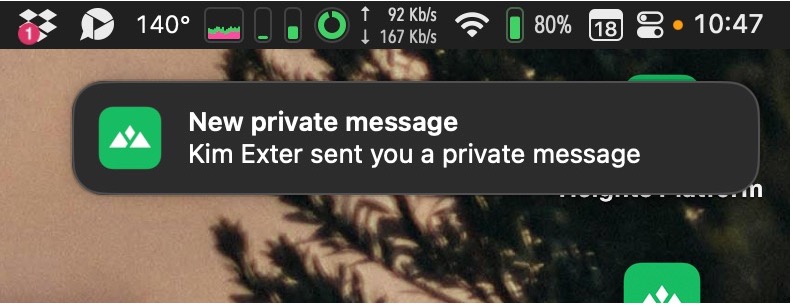
When you have the Heights Platform desktop application open, you'll receive real-time notifications for important updates, such as when a scheduled live call is about to start, when you've received a private message, or when you have been mentioned in the community.
Important note for creators using custom domains
Heights will not proactively notify your members/learners that a desktop app exists. If you want members to use the desktop app, you should share that with them directly.
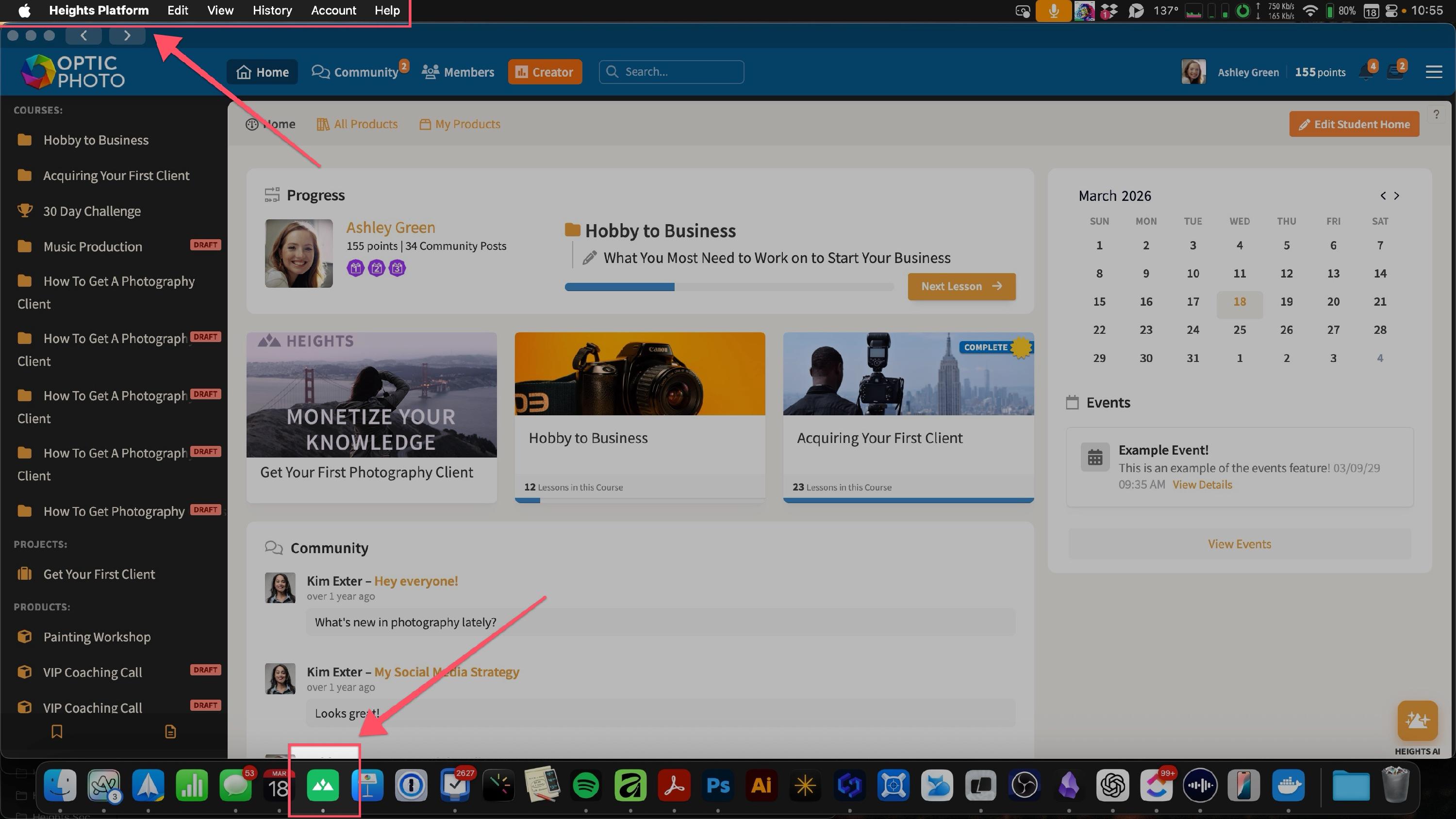
Please note: when members install the app, they will see the app name Heights Platform and the Heights logo as the desktop app icon.
Updates and New Versions for the Heights Desktop App
The app checks for newer versions automatically and will prompt you when an update is available. We recommend installing updates to get the latest fixes and improvements.
Related: To learn about how Heights Platform works on mobile devices, see this article: Using Heights Platform on Mobile Devices