Language Customization
Heights includes a language customization area that lets you replace certain student-facing words and phrases with terminology that better fits your brand.
For example, if the word Course does not match how you describe your program, you might rename it to something like Cohort, Path, or Masterclass.
These customizations change wording only. They do not translate your whole program into another language by themselves. Your chosen default display language still controls the base interface language, and your custom replacements override that wording in supported student-facing areas.
Where to find language customization
You can find language customization in the Customize Language area of your account settings.
The standard language customization area lets you rename common terms such as:
- Course / Courses
- Lesson / Lessons
- Community and community channel labels
- Project / Projects
- Bundle and product labels
- Members
- Points
There are also expanded phrase groups for some areas, such as lesson-related wording and certain public community phrases.
Note that this feature is different than our language localizations feature which allows you and your students to select a default language for all member-facing wording in the interface.
Advanced language customization on the Academy plan
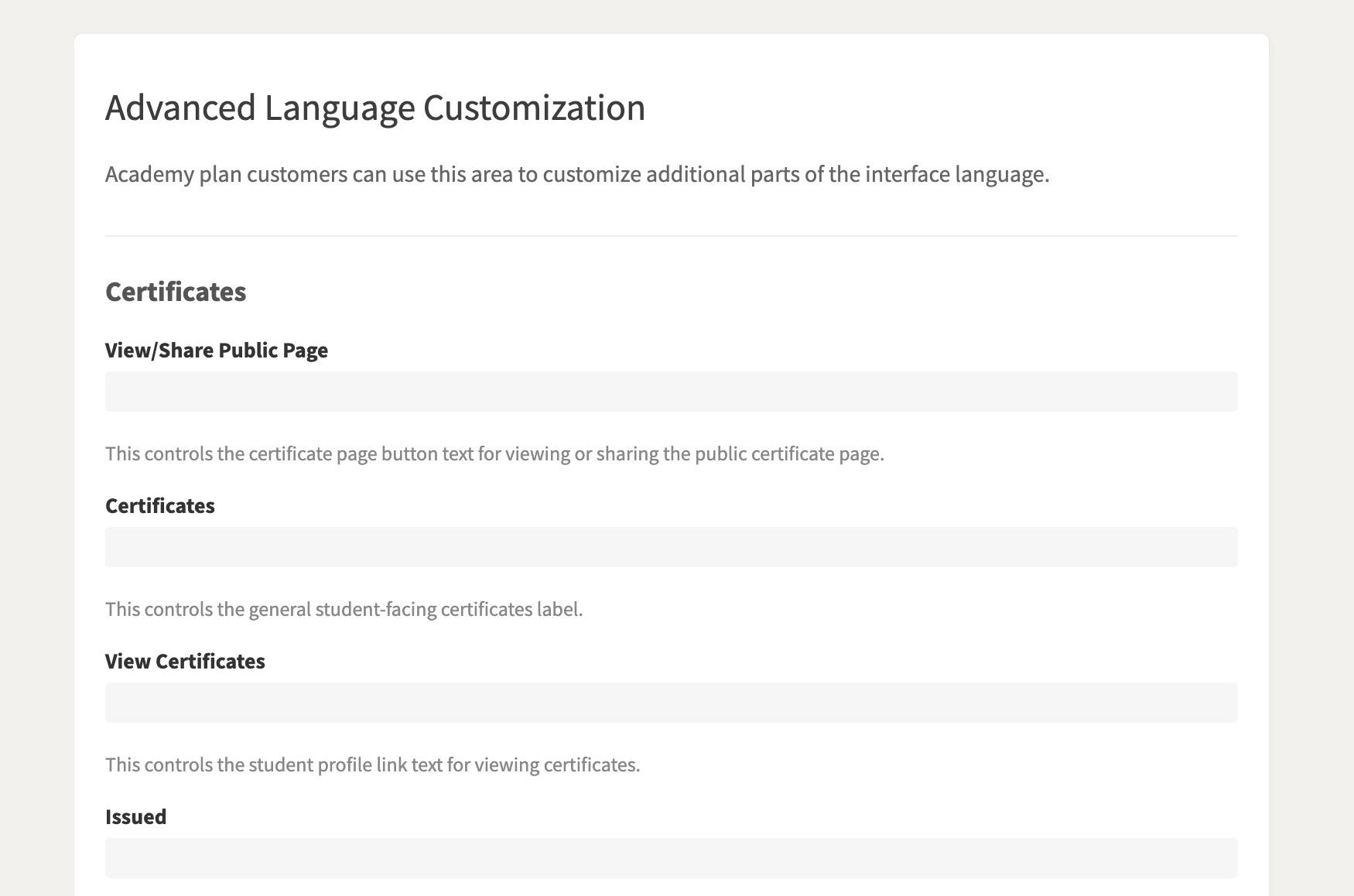
Academy plan customers also get access to an Advanced Language Customization tab with additional interface wording controls.
This advanced area currently includes extra wording controls for areas such as:
- Certificates — certificate labels, issued text, expires text, and certificate-related student links
- Checkout — phrases such as the main purchase button and thank-you wording
- Messages — student-facing messages labels
- Live Calls — live call wording and reminder phrases where supported
This is helpful for creators who want deeper brand control over the student experience without needing custom code.
What happens if I need wording that is not listed?
If you are on the Academy plan and want wording in another part of the student interface customized, you can contact support@heightsplatform.com to ask whether that request can be supported for your account.
Best practices for language customization
- Keep capitalization and punctuation consistent with the label you are replacing.
- Test your changes throughout the student experience after saving them.
- Use simple, familiar wording so your students always understand what each area means.