Merging Duplicate Student Accounts
If a student accidentally ends up with two accounts, you can merge them into one without manually checking each product, order, or progress record one by one.
This is especially helpful when a student:
- signed up with a different email by mistake
- forgot they already had an account
- used one account for earlier purchases and a different one later
- has course progress or community activity split across two accounts
The merge tool helps you combine the duplicate account into the original account you want to keep.
What this feature does
When you merge duplicate student accounts, Heights will move supported records from the duplicate account to the kept account for you.
This saves you from doing the old manual process of:
- opening two student records side by side
- checking what the student bought on one account
- checking what they already had on the other account
- re-granting access one product at a time
- trying to preserve course progress manually
Instead, the merge tool handles the supported data transfer automatically and then removes the duplicate account.
Important terms
Source account = the duplicate account that will be merged and deleted.
Target account = the original account that will be kept.
In simple terms: you merge the source account into the target account.
Example scenario
A student originally joined your program with jane@example.com.
Later, they forgot they already had an account and signed up again with jane.new@example.com. Now:
- one account has some orders and product access
- the other account has newer course progress or community activity
- you want the student to end up with one clean account going forward
Instead of manually comparing both users and re-granting products yourself, you can merge the duplicate account into the original one you want to keep.
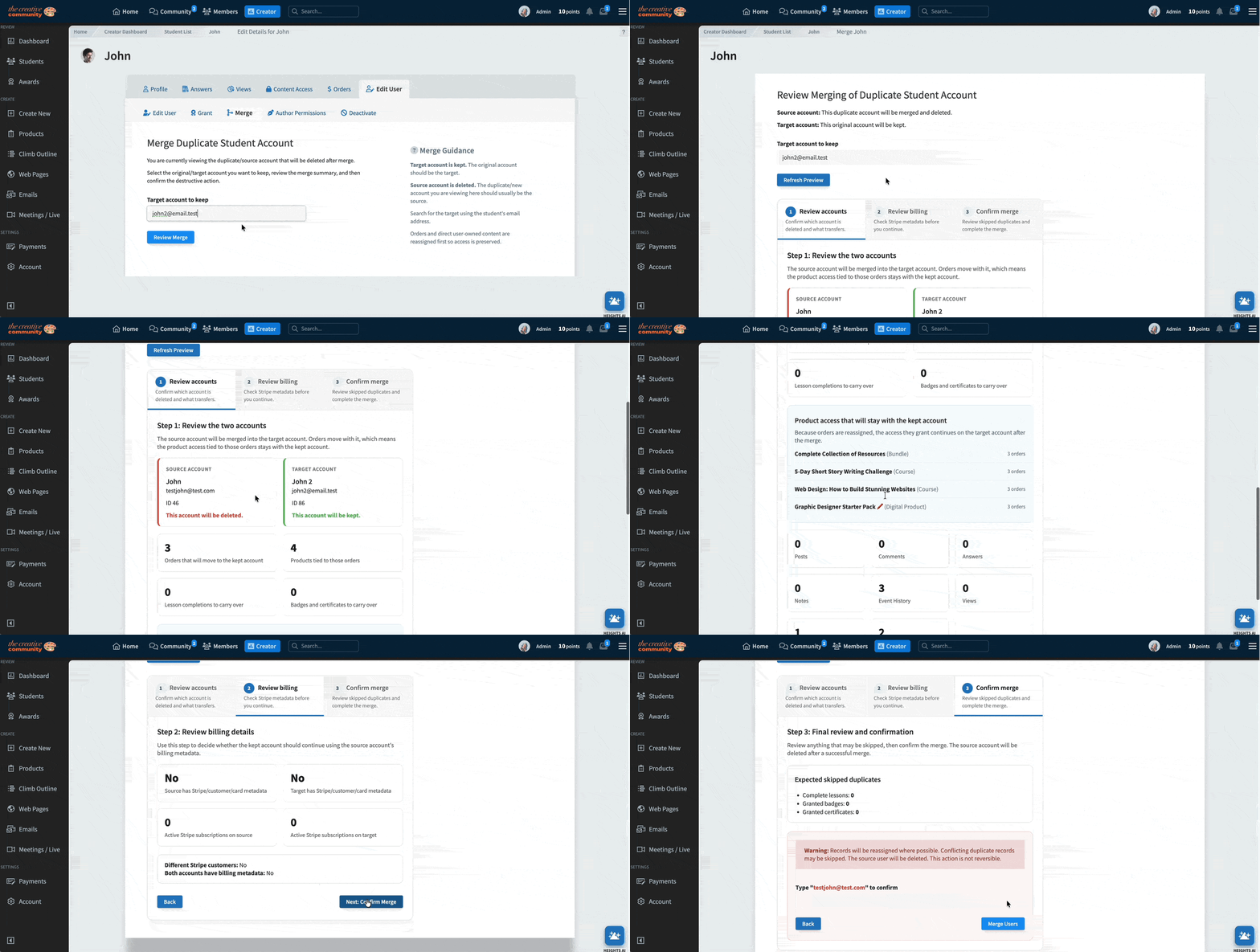
How to merge duplicate student accounts
- Go to Student List.
- Open the student record for the duplicate account you want to remove.
- Click Edit User.
- Open the Merge tab.
- In Target account to keep, enter the email address of the account you want to keep.
- Click Refresh Preview.
- Review the merge summary carefully.
- If everything looks correct, type the source account email exactly to confirm.
- Click Merge Users.
What to review before confirming
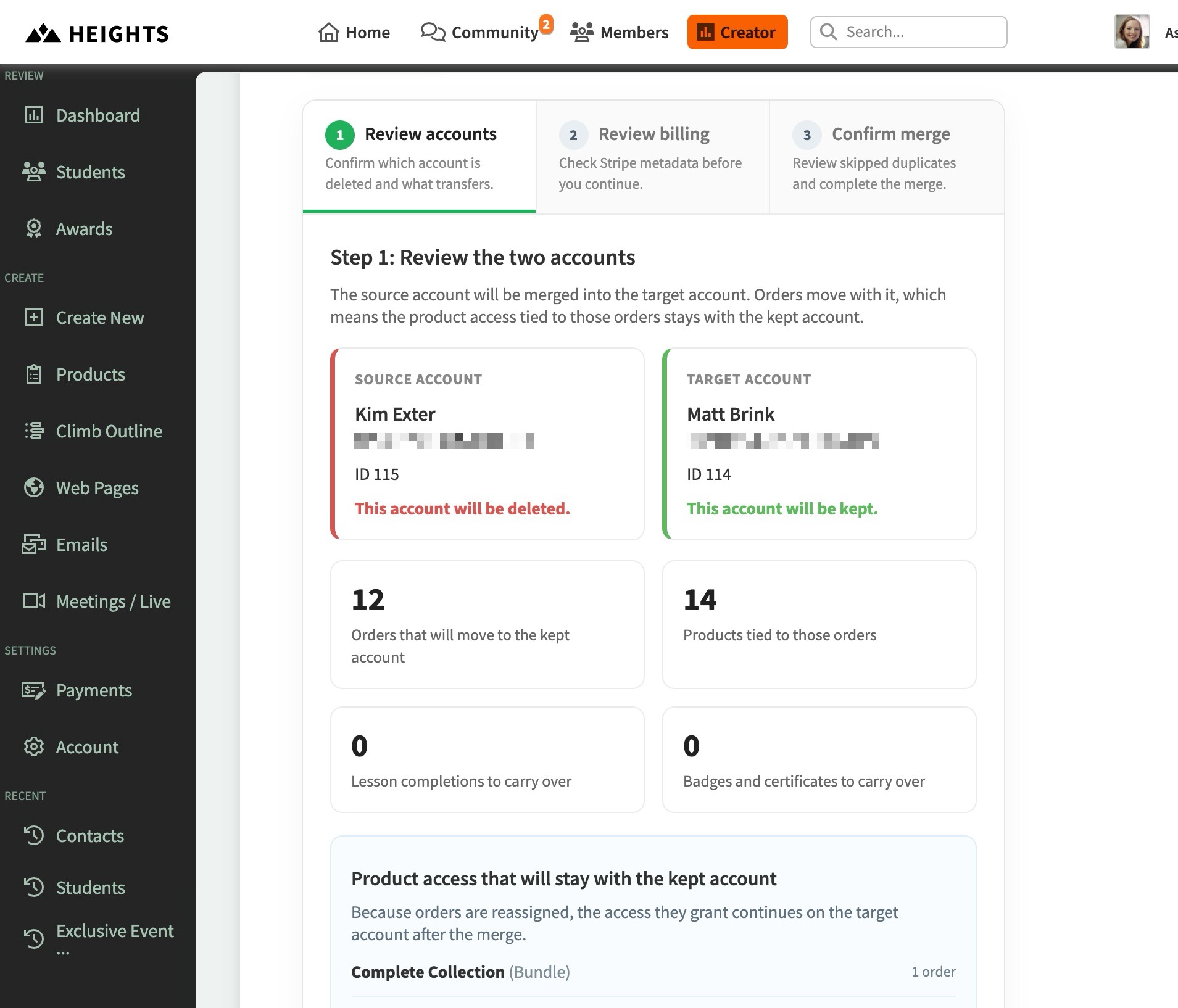
The preview screen shows a summary of what will happen before you merge.
Review:
- which account will be deleted
- which account will be kept
- how many records will move
- whether both accounts have billing metadata
- whether any duplicate records may be skipped
This makes it much easier to verify the merge before making a permanent change.
What data is moved
The merge tool moves supported student data from the source account to the target account, including:
- orders
- posts
- comments
- answers
- notes
- events
- impressions/views
- completed lessons
- granted badges
- granted certificates
- community topics and replies
If a duplicate record already exists on the kept account for certain progress-style records, Heights may skip the duplicate instead of creating two copies.
What happens to the source account
After a successful merge:
- supported records are reassigned to the target account
- the target account remains active
- the source account is deleted
This action cannot be undone, so always review the preview first.
Understanding the billing metadata option when merging students
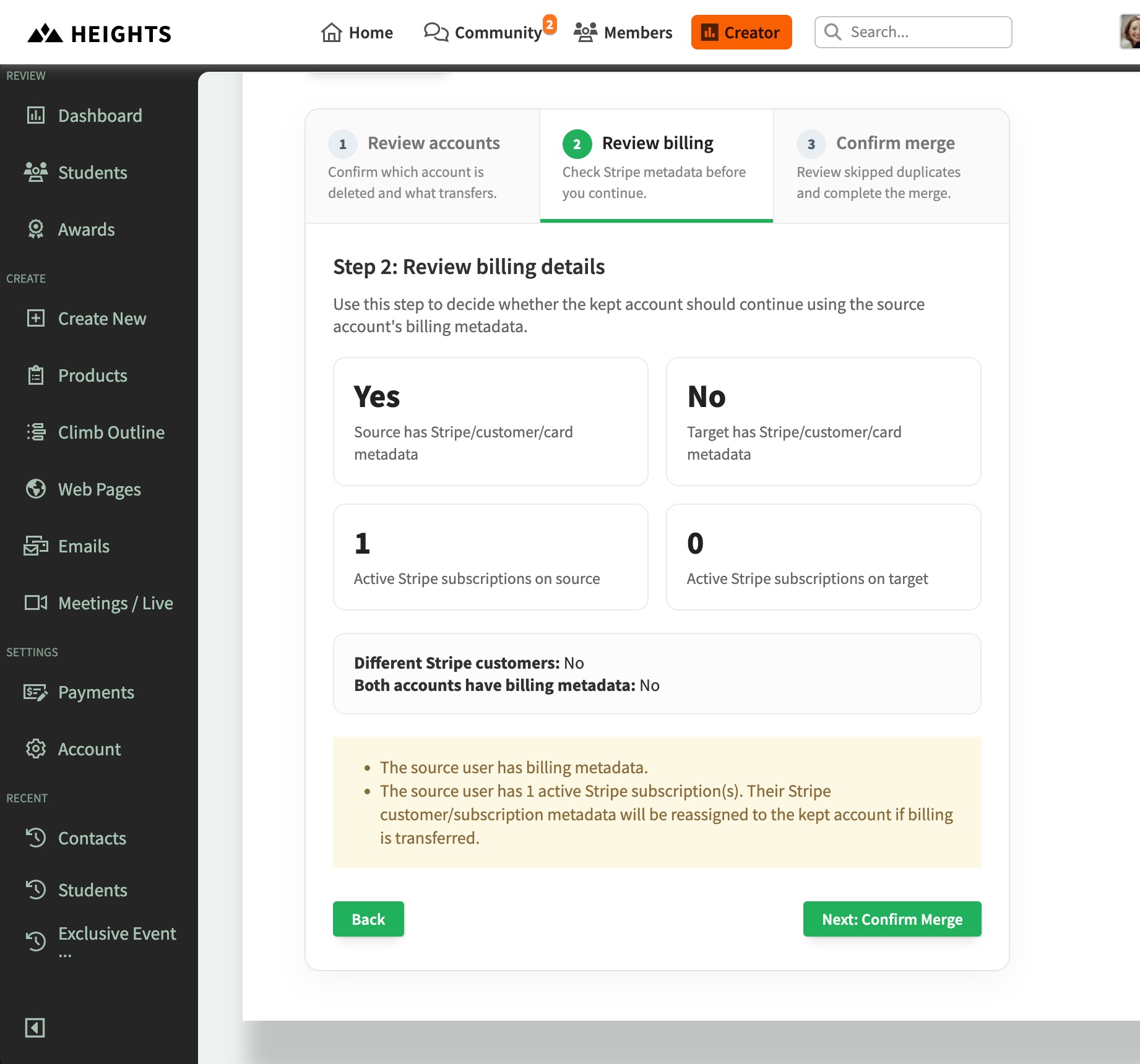
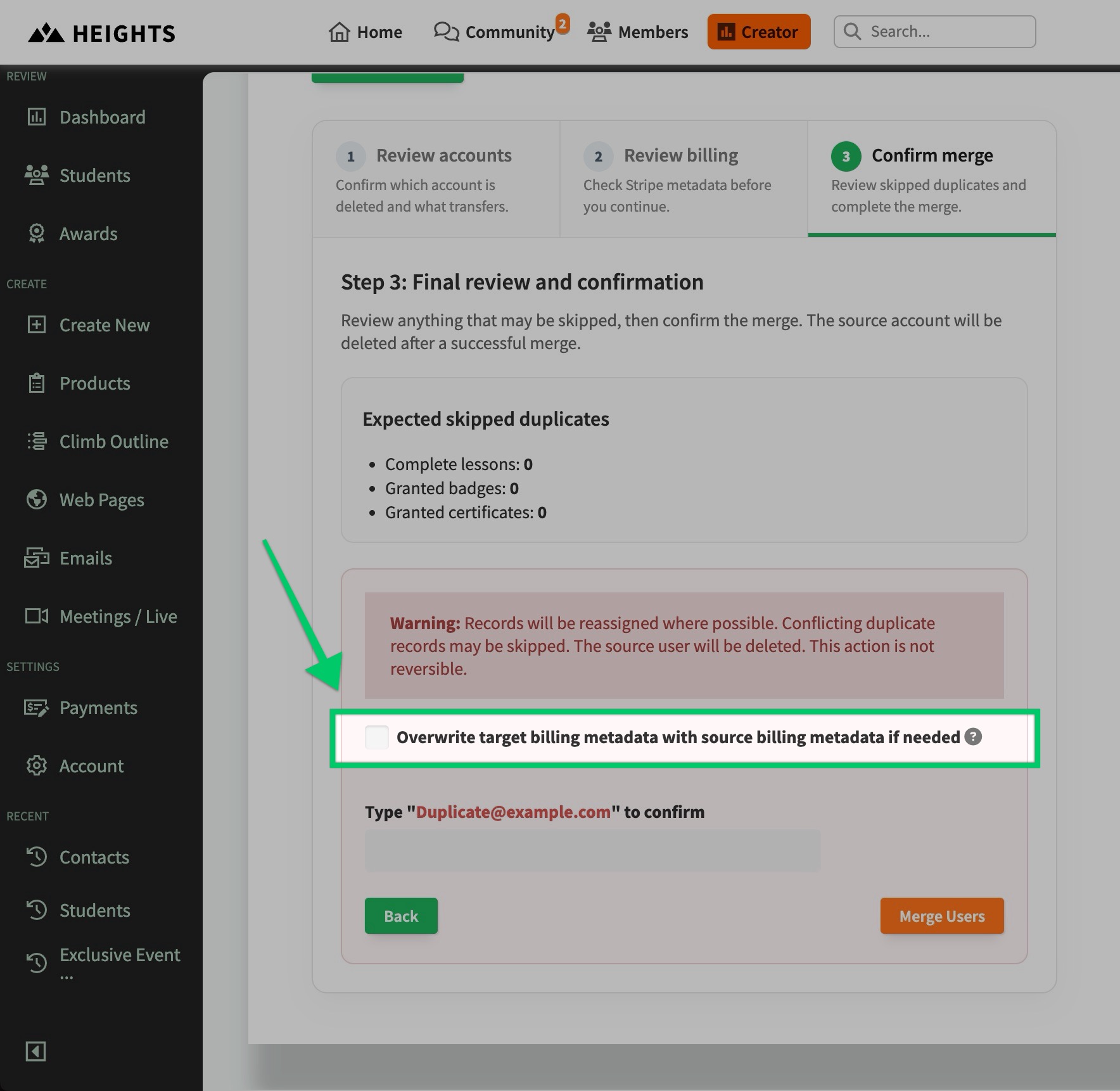
If both accounts have billing metadata, you may see an option to:
Overwrite target billing metadata with source billing metadata if needed
This is most useful when the source account has the billing history that should continue to control future billing-related actions.
Why would you choose this?
You may want to select this option if the duplicate/source account is the one connected to:
- an installment plan
- a subscription
- saved card/customer data that still matters for future billing events
For example, a student may have already made a few installment payments on the source account. If a future payment fails, or if access needs to be updated automatically later, Heights needs the kept account to be the one tied to the relevant billing metadata.
Otherwise, future billing-related actions could still point to the deleted account instead of the kept one.
When should you leave it unchecked?
Leave it unchecked if you want to keep the target account's existing billing profile exactly as it is.
In short:
- Check it if the source account has the billing history you still need to follow.
- Leave it unchecked if the target account already has the billing setup you want to preserve.
Best practice for choosing which account to keep when merging students
In most cases, the best target account is the one the student should continue using going forward.
This is often the account that has:
- the correct long-term email address
- the login the student wants to keep using
- the more complete profile or purchase history
The duplicate or accidental account should usually be the source account that gets merged and deleted.
What if some records are skipped?
Some duplicate progress-style records may be skipped if the target account already has the equivalent record.
That is expected behavior and helps prevent duplicate entries.
For example, if both accounts already show completion for the same lesson, Heights will keep the existing completion on the target account rather than trying to create a second one.
When this feature is especially helpful
- A student enrolled twice with two different email addresses.
- A student used one email for an older purchase and another for a newer one.
- A student has progress on one account and purchases on another.
- You want to avoid manually re-granting products and recreating access.
- You want one clean account for the student going forward.
Before you merge
Please double-check:
- you selected the correct source account to delete
- you selected the correct target account to keep
- the preview summary matches what you expect
- you understand the billing metadata option if it appears